Introducing Cloud Drive
This brief provides an overview of PreVeil Cloud Drive, including what’s changed, what it means for users, and what to expect during the upgrade process.
Cloud Drive is a rearchitecture of PreVeil’s core Drive product that shifts to a cloud-default storage model. Rather than syncing files locally and backing them up to the cloud, Cloud Drive stores all files in the cloud by default — protected by PreVeil’s end-to-end encryption — and pulls them down to the device only when needed. The result is a faster, leaner experience that gives users full visibility into their encrypted file structure from the desktop without requiring local storage. PreVeil’s underlying security and compliance architecture remains unchanged.
Download
Cloud Drive Beta
Explore the new features
Watch a Demo
What’s New in Cloud Drive
Cloud Drive introduces a more seamless way for users to access and manage encrypted files.
Key updates include:
- Cloud-default storage — All files are stored in the cloud by default, protected by PreVeil’s end-to-end encryption. Local storage is freed up automatically, and users can choose to keep select files on-device for offline access.
- Familiar desktop file management — Users view and manage their entire encrypted file structure directly from File Explorer (Windows) or Finder (macOS). Opening a file pulls down a copy for local editing with native applications, and shared files automatically lock when being edited to prevent version conflicts.
- Cloud Lock — An enhanced admin control that enables greater restrictions on the flow of sensitive data. Cloud Lock can prevent users from downloading files locally, reducing spillage events and tightening an organization’s compliance posture.
These updates allow users to work with encrypted files more naturally within their existing desktop workflows.
How It Works for Users
Cloud Drive integrates directly with File Explorer (Windows) and Finder (macOS), giving users a familiar interface for working with encrypted files.
Browsing and opening files — Users see their entire PreVeil file structure from the desktop, including files stored only in the cloud. Files appear alongside local files in the native file system. Opening a file pulls down a temporary copy for editing in the user’s native application — Word, Excel, Adobe, or any other program. Edits sync back to the cloud automatically.
Managing local storage — Files are cloud-only by default, but users have control over what stays on-device:
- Keep on device stores selected files or folders locally for offline access.
- Free up space returns locally stored files to the cloud while keeping them visible and accessible from the desktop.
Collaboration — When a user opens a shared file for editing, Cloud Drive automatically locks the file so others cannot make simultaneous edits. The lock releases when the file is closed. This prevents version conflicts without requiring users to coordinate manually.
Compliance Impact
Cloud Drive does not change PreVeil’s underlying security architecture. The same end-to-end encryption model, backend infrastructure, and compliance controls remain in place. Organizations currently meeting CMMC, NIST 800-171, ITAR, or other regulatory requirements will maintain that posture after upgrading.
Cloud Lock introduces an additional layer of administrative control. By preventing local file downloads across endpoints, Cloud Lock reduces the risk of CUI spillage and helps organizations enforce tighter data boundaries — a direct benefit for compliance-conscious environments.
What Is Different Compared to Today
| PreVeil Drive (Current) | Cloud Drive | |
| File storage | Files sync locally by default | Files stored in the cloud by default; downloaded only when opened |
| Desktop visibility | Users see only locally synced files | Users see their full file structure, including cloud-only files |
| Local disk usage | Grows as files sync | Minimal; users choose what to keep on-device |
| Collaboration | Potential document collisions | Automatic file locking during edits |
| Admin data controls | Standard sharing permissions | Cloud Lock prevents local downloads across endpoints |
Upgrade Flow for Existing Users
To install Cloud Drive, simply download the Cloud Drive beta from the downloads page and run the .msi folder — Cloud Drive will replace your existing PreVeil application.
When you first upgrade, you will see two folders in your directory:
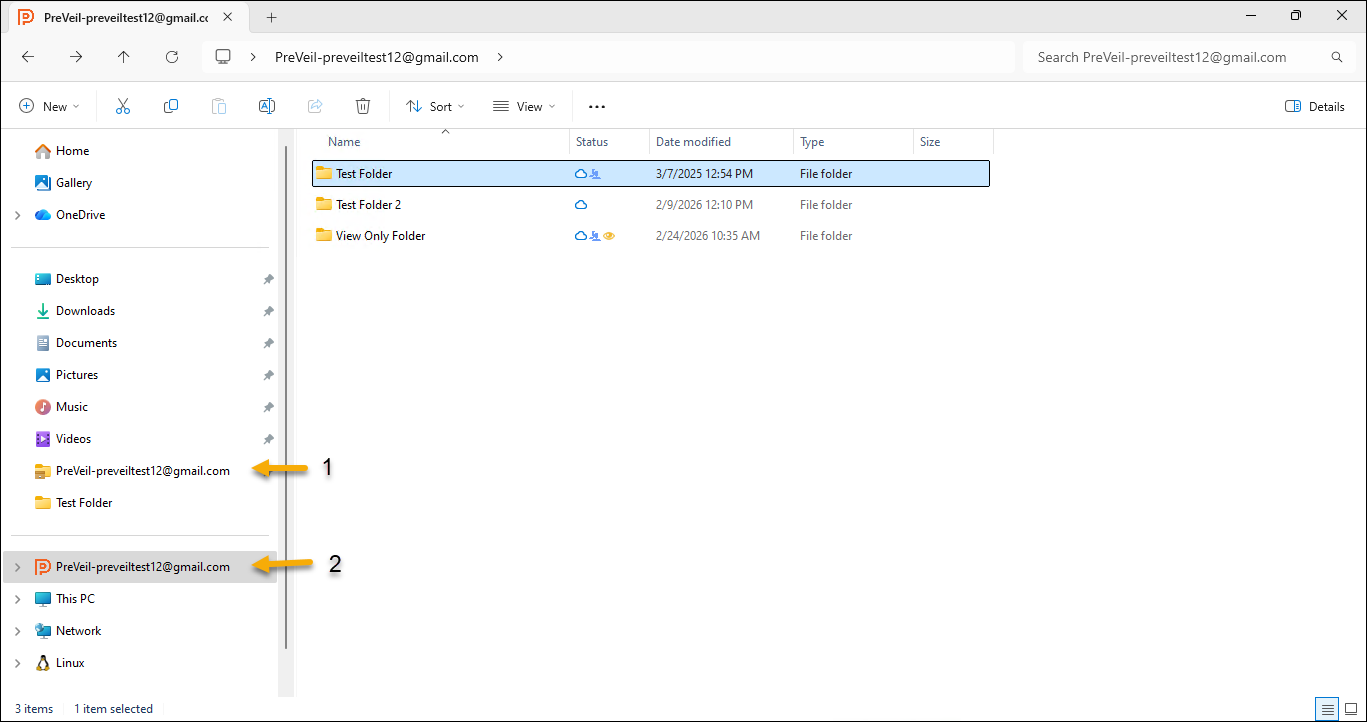
- Folder 1 (Original Drive): Your old local files.
- Folder 2 (Cloud Drive): Your new cloud-first directory.
- Action Required: Confirm your data is visible in the new Cloud Drive folder before deleting the original local directory.
To ensure security and compliance with frameworks like CMMC and NIST 800-171, Cloud Drive will only install on a Windows 11 machine. Cloud Drive will be supported by macOS in June 2026.
For further information on upgrading, see our Cloud Drive Support article or visit our support page.